
So, you've heard the whispers, the rumors, the excited shouts from your friend who just spent $2000 on a new graphics card: Minecraft, that lovable blocky sandbox, can now look drop-dead gorgeous with real-time ray tracing. It's been a feature for a few years now, but as of 2026, it's polished, it's beautiful, and it makes those sunsets over a pixelated mountain look like something out of a painting. But wait, hold your horses—or should we say, your creepers? While the tech is officially live, getting it to work on your own freshly-dug dirt hut world, not just a pre-made showcase, involves a little bit of digital spelunking. It’s not exactly rocket science, but it’s also not a one-click affair. Think of it as a mini-quest before the main adventure. The good news? If you've got the hardware (an Nvidia RTX 2060 or better is still the sweet spot), and about two minutes of patience, you can be building your dream castle with shadows that actually behave like, you know, shadows. Let's get this show on the road!
Step 1: The Hardware Reality Check & Sign-Up Shenanigans
First off, let's not beat around the bush. Your trusty old graphics card from the stone age (circa 2018) probably won't cut it. You'll need an Nvidia RTX card, specifically a 2060 or anything more recent. If you're team red or rocking integrated graphics, the odds are, sadly, not in your favor. It's a bummer, but that's just how the cookie crumbles with this particular slice of graphical pie.
Assuming you pass the hardware vibe check, you might need to ensure you're part of the right Minecraft program. These days, accessing the ray tracing features is usually tied to the Minecraft with RTX beta or specific updates for the Bedrock/Windows 10 edition. A quick visit to the official Minecraft or Nvidia sites will have the latest sign-up instructions. It's usually as simple as flipping a switch in the Xbox Insider Hub app on Windows. No biggie.
Step 2: Snagging the Visual Goodies (The Resource Packs)
Here's where the magic starts. Ray tracing in Minecraft doesn't just work on the vanilla textures; it needs special Resource Packs or Asset Packs that are designed with physically-based rendering (PBR) properties. This is what gives blocks their realistic shine, roughness, and light-bending qualities. Back in the day, Nvidia provided a few stellar packs, and the tradition continues with even more community and official options now.
Where to find them in 2026:
-
Official Sources: Check the Minecraft Marketplace or Nvidia's official GeForce website. They often host high-quality, free RTX-enabled packs.
-
Community Gems: Sites like MCPEDL or dedicated forums are treasure troves. Just make sure the pack is marked as "RTX compatible" or "PBR."
For that classic Minecraft feel but with an unbelievable glow-up, packs like "RazzleCore RTX" or "NVIDIA's Defined PBR" are perennial favorites. They're surprisingly small files—often just a few megabytes—so your SSD won't even blink. Download your chosen pack and unzip it to a folder you can easily find. Pro tip: Don't just leave it in your Downloads folder; that's a one-way ticket to "Where did that file go?" town.
Step 3: The Semi-Tricky Folder Trek (Don't Panic!)
Alright, this is the part that feels a bit like navigating a jungle temple without a map. You need to place your shiny new resource pack into Minecraft's specific, and somewhat hidden, system folder. The path hasn't changed much over the years, but it's buried deep.
On a standard Windows 11/10 PC in 2026, the path typically looks like this:
C:\Users\[YOUR_USERNAME]\AppData\Local\Packages\Microsoft.MinecraftUWP_8wekyb3d8bbwe\LocalState\games\com.mojang\resource_packs
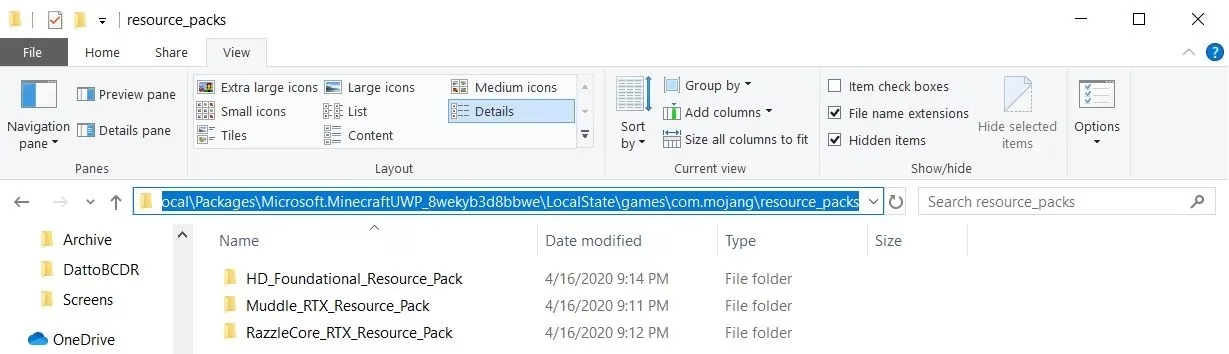
Crucial Heads-Up:
-
[YOUR_USERNAME]is, shockingly, your username on the PC. If you're not a "James," don't put "James." That's his folder, not yours. -
AppDatais a hidden folder. Microsoft hides it to keep users from accidentally breaking things, which is... considerate, but annoying. To reveal it: -
Open File Explorer.
-
Click the View menu at the top.
-
Check the box for Hidden items. Voilà!
Now, just copy and paste (or drag and drop) the entire unzipped resource pack folder (e.g., RazzleCore RTX) into that resource_packs directory. You're almost there!
Step 4: Flipping the Switch In-Game (The Home Stretch)
Time to fire up Minecraft! This part is straightforward, but let's walk through it.
-
Create a New World (or edit an existing one). Click on Create New World.
-
Before hitting "Play," click the little pencil/edit icon next to your world name.
-
Navigate to the Settings tab, then find Resource Packs (sometimes under "Add-Ons" or "World Settings").
-
In the "Available" packs list, you should see your newly added pack (e.g., RazzleCore RTX). Select it and click the arrow button to move it to the "Selected" column. Make sure it's at the top of the "Selected" list for priority.
-
Crucial for RTX: Ensure the Render Dragon graphics engine is enabled and look for a toggle labeled "Ray Tracing" or "Fancy Graphics" in the video settings. Turn it ON! Sometimes it's auto-enabled with the right pack.
-
Save your world settings and load in!
Step 5: Stop and Smell the... Pixels (Enjoy the View!)
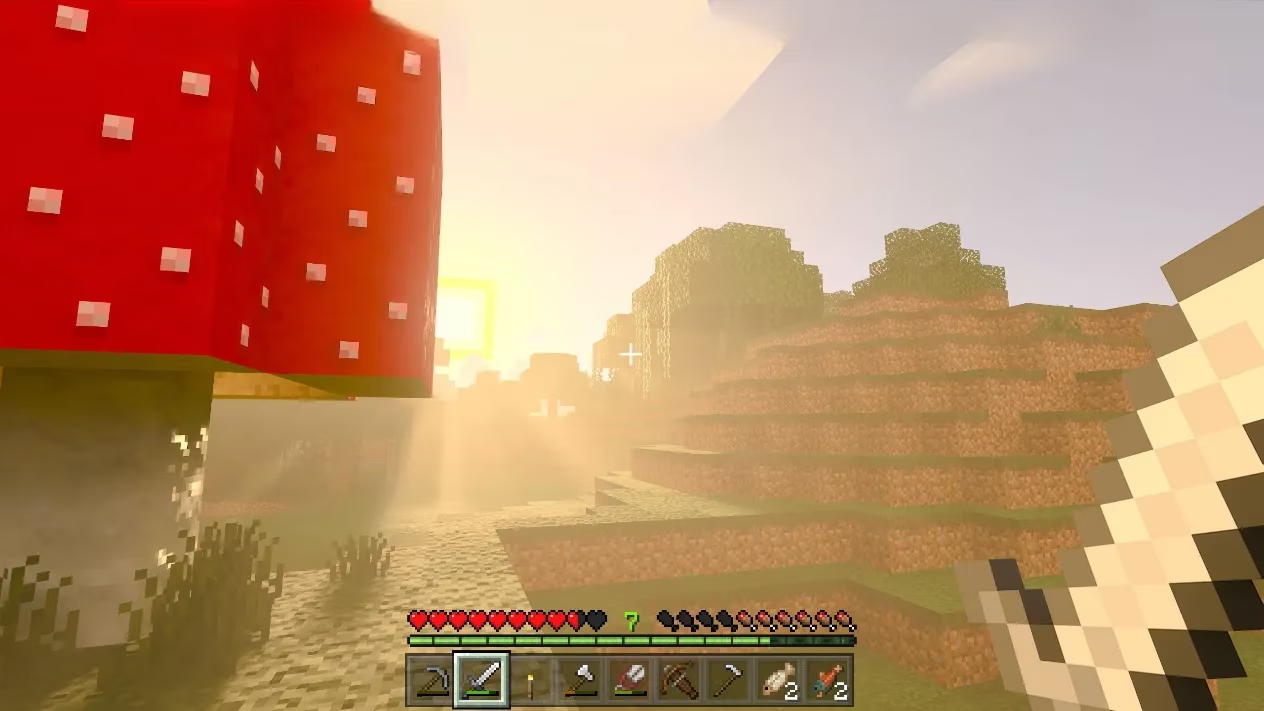
Congratulations! You've done it. No longer are you playing in a world of flat lighting. Now, sunlight streams through leaves, water reflects the sky and surrounding blocks with mesmerizing clarity, and lava casts a dynamic, ominous glow on your cobblestone walls. Building a simple glass house becomes an exercise in light physics. It's a whole new game.
A Quick 2026 Troubleshooting FAQ:
-
Q: My game is crashing or the pack isn't showing up!
-
A: Double-check the folder path. You must place the unzipped folder into
resource_packs, not the .zip file itself. Also, verify your Minecraft edition and that the pack is for the correct version. -
Q: Ray tracing option is grayed out!
-
A: This usually means one of three things: Your GPU isn't supported, you're not on the required game version/beta, or you haven't enabled the necessary global settings in your Nvidia Control Panel. A quick web search for "Minecraft RTX grayed out 2026" will have the latest fixes.
-
Q: Performance is terrible!
-
A: Ray tracing is heavy. Even in 2026, it demands a good GPU. Try lowering other settings like render distance or enabling DLSS/FSR if your game supports it. Sometimes, less complex resource packs also help.
So there you have it. With a bit of file management and the right digital tools, you can transform your blocky universe into a visual masterpiece. Now go forth, explore, and maybe try not to get so distracted by the pretty puddles that a zombie sneaks up on you. Happy mining, and even happier gazing! ✨
Comments